General Processes, Videos, and Custom Workflows

myflexbox Training Portal

Hello, dear CEPs! Below you will find our general processes. Please also review your individual procedures via your specific link, which leads to your own password-protected area (available soon).

We wish you every success!

myflexbox kep

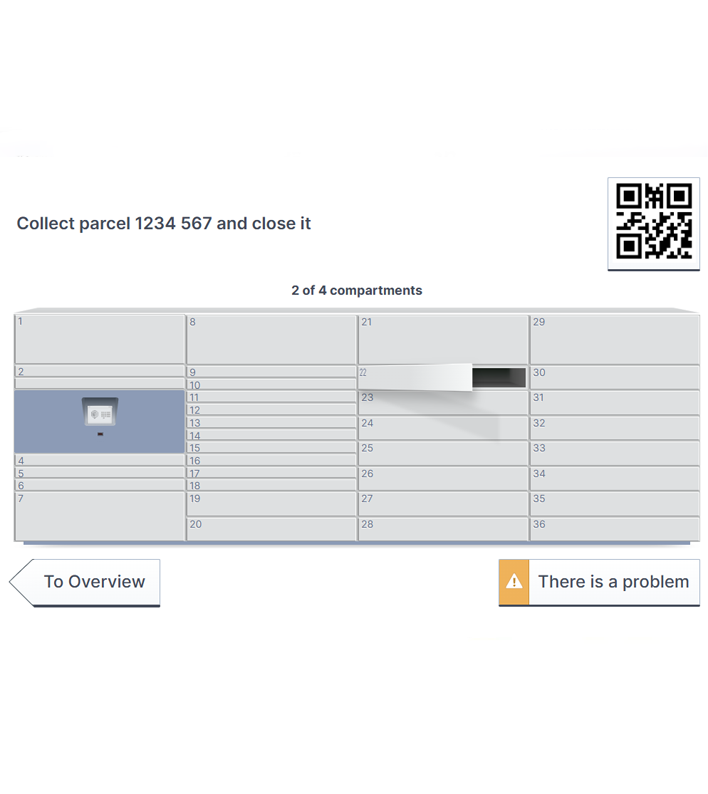
Problems with Pickup

Empty compartment?

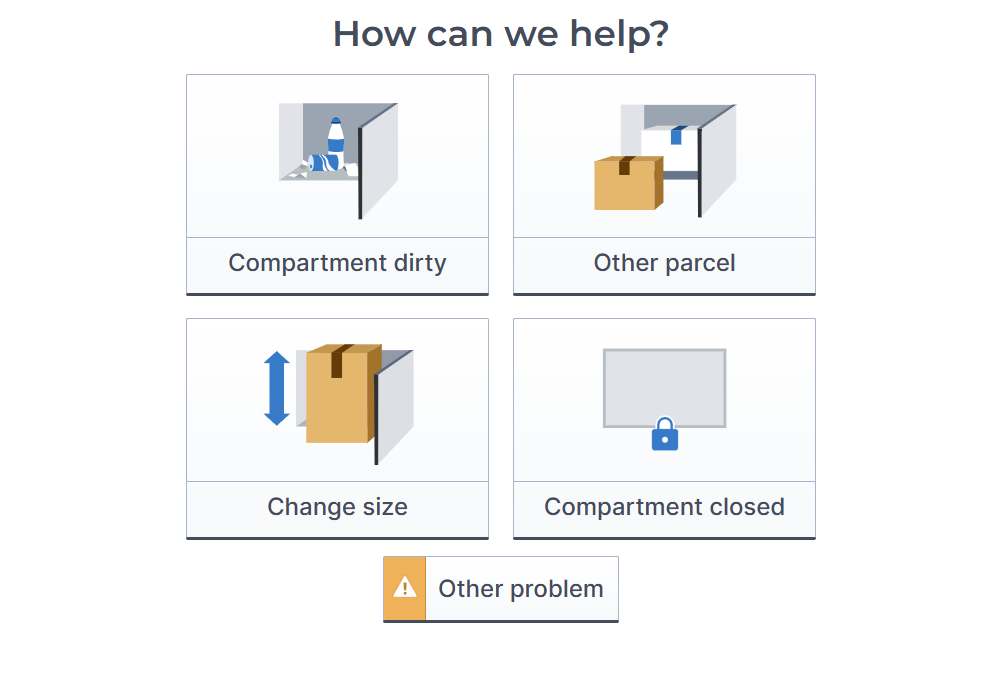
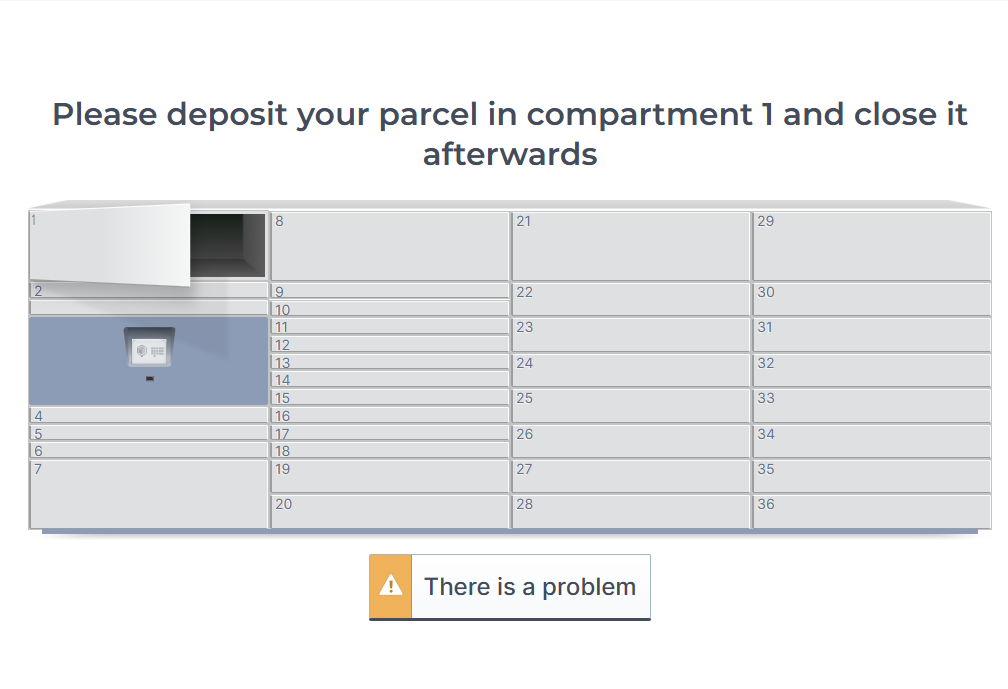
• Select “There is a problem.”
Problem

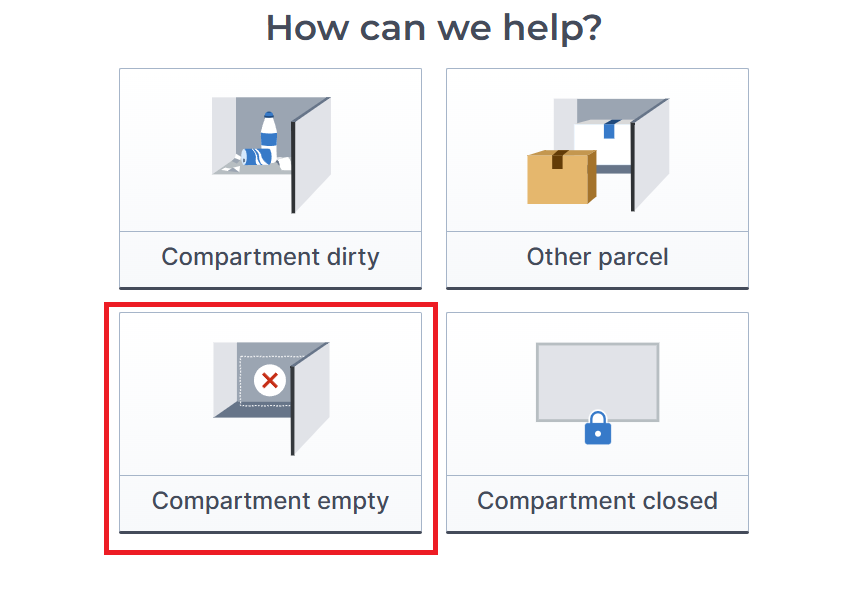
• Report it via “Compartment empty.”
Problem - Leeres Fach

• Enter the missing parcel into the handheld scanner.

Unknown parcel?

• Check the tracking number.

• Select “There’s a problem.”
Problem

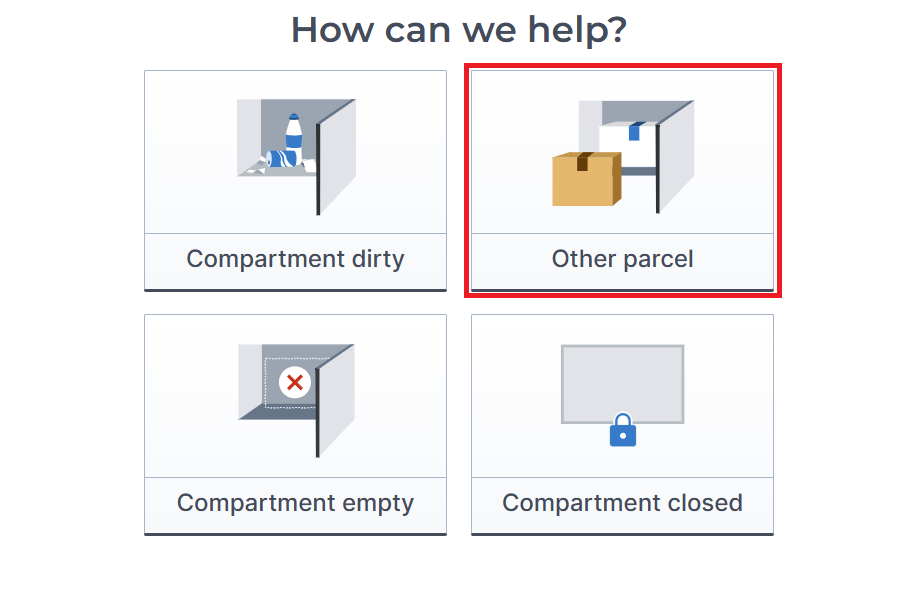
• Report the issue via “Other parcel.”
Problem - anderes Paket

• Place the package back inside and close the compartment.

Are there several parcels in the locker?

• Check all parcels to see if they are marked for pickup.

• Select “There is a problem.”
Problem

• Report it using “Other parcel.”
Problem - anderes Paket

• Report any irregularities and return parcels from other carriers to the locker.

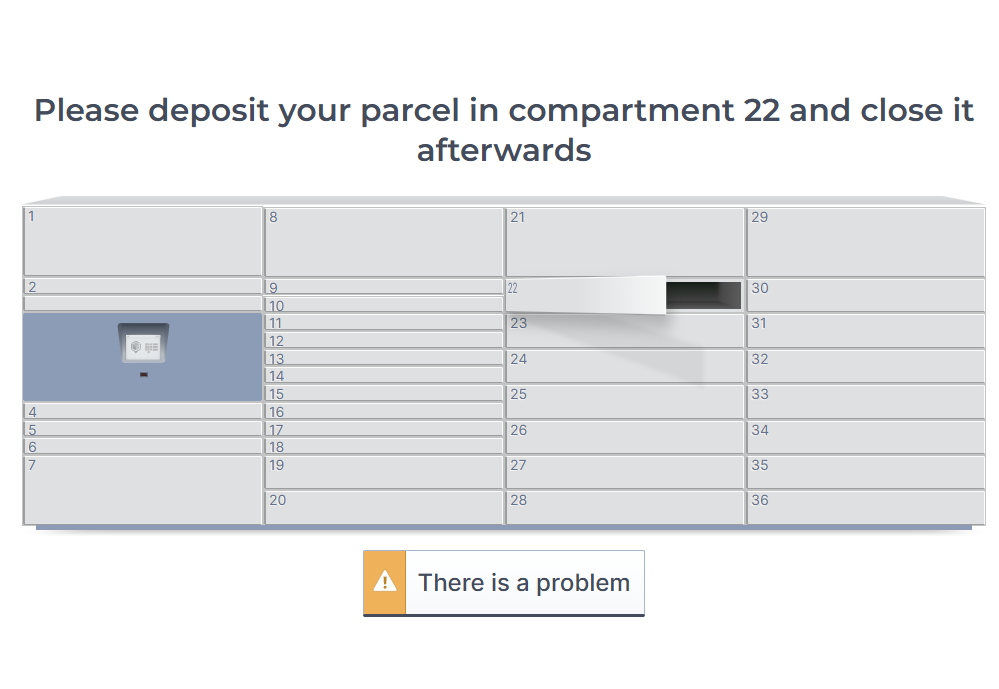
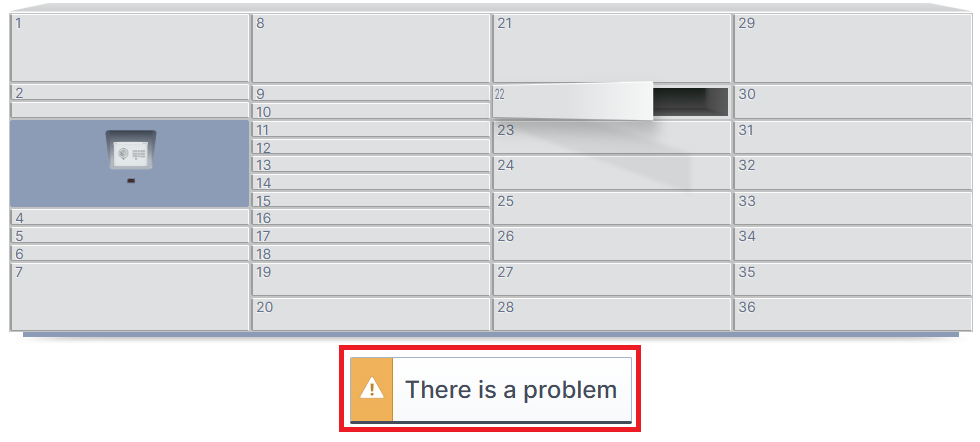
The compartment won't open?

• Select “There is a problem.”
Problem

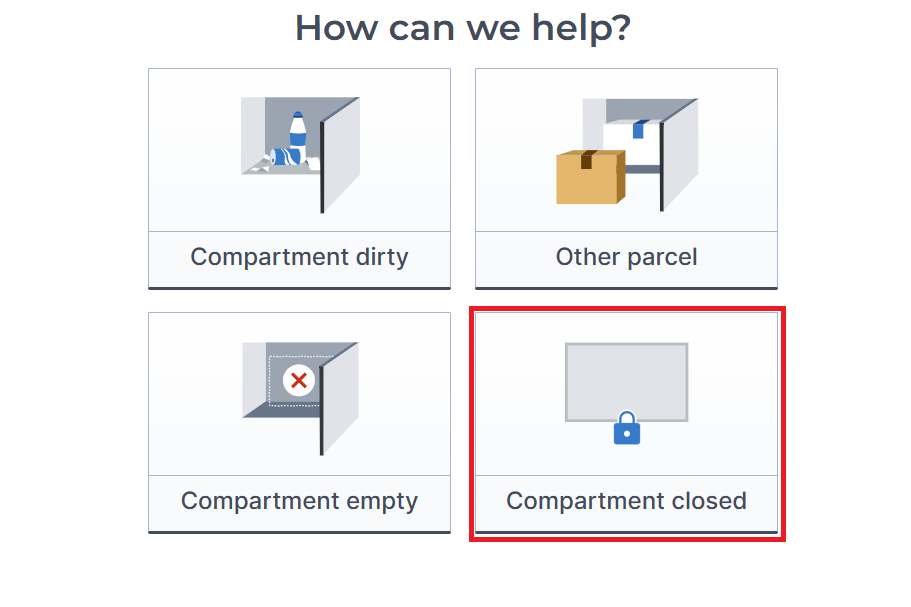
• Report the issuevia “Compartment Closed.”
Problem - Fach geschlossen

• If necessary, repeat the process to open the compartment. Sometimes, gently pressing against the compartment can help clear a possible blockage.

• If the problem persists, notify the depot.

Problems with Storage

Unknown parcel?

• Select “There’s a problem.”
Problem

• Report it via “Other parcel.”
Problem - anderes Paket

•Return the wrong parcel to the locker.

• The Locker will then suggest a new compartment for storage.

The compartment won't open?

• Select “There is a problem.”
Problem

• Report the issue via “Compartment Closed.”
Problem - Fach geschlossen

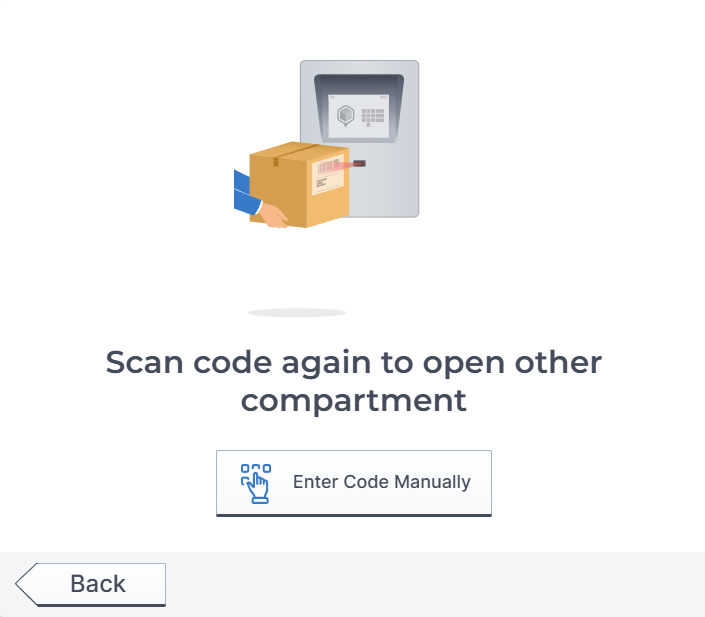
•Scan the parcel again; if necessary, switch compartments.

• If the problem persists, notify the depot.

General Problems

Can't scan the parcel?

• Check the distance to the scanner —hold the parcel closer or slightly farther away.
• Slightly adjust the angle.
• If the label contains multiple barcodes or QR codes, cover the irrelevant codes with your hand.
• If the scanner malfunctions, enter the tracking number manually at the locker.
• Then notify the depot.

Black screen?

• Locker with solar panel: Press the activation button below the screen (in the center) to turn on the locker.
• Locker without solar panel: Simply touch the screen to activate it.
• If the screen remains black, please notify the depot.

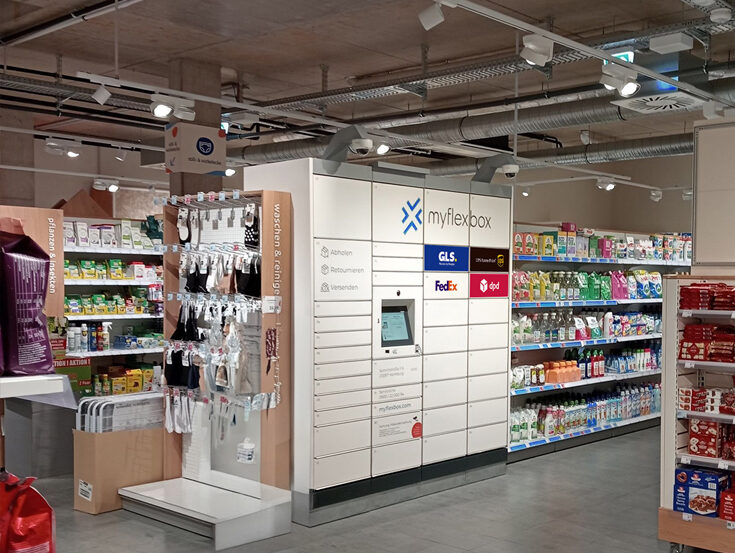
A variety of locations, indoor and outdoor

1. Our Locations

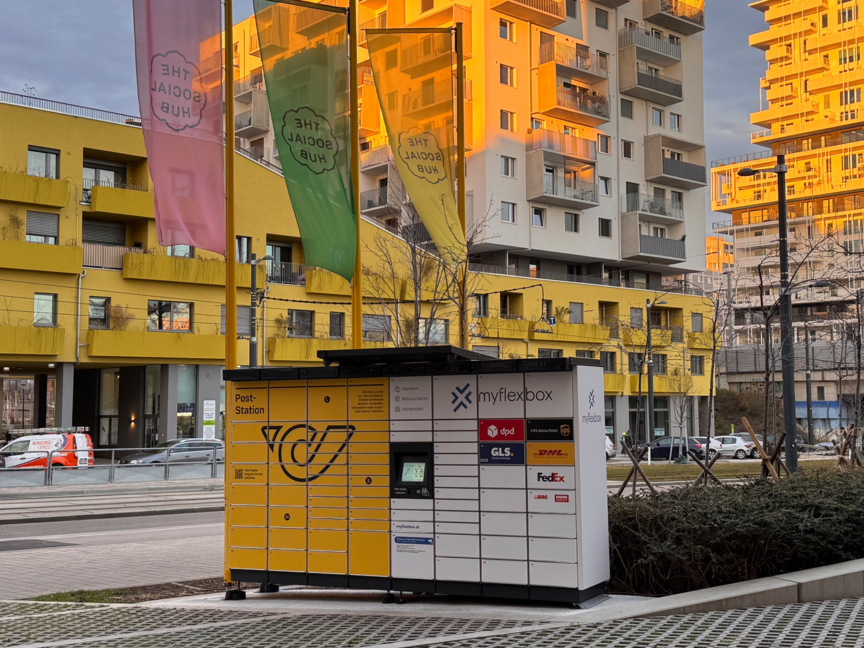
myflexbox locker

Example: Indoor Locker AT

locker2

Example: Outdoor Locker AT

DE Arka

Example: Outdoor Locker DE

DE indoor

Example: Indoor Locker DE

TIP: There are indoor locations that are not open to the public, such as Storebox

Storebox Guide
Storeboxj

Various Types and Variations

Examples of Lockers

Classic 8

MFB-Classic 8 (InPost)

MFB-Towers 8 KEBA

MFB-Towers 8 (KEBA)

MFB-Mod 8 ARKA_2

MFB-Mod 8 (ARKA)
– Solar locker with wake-up button
– Also available as a plug-in without PV modules

General Pickup Process

parcels

Always pick up the parcels that are already stored first (pickup process), and then place the new parcels in the locker.
This way, you’ll free up compartments for deliveries and avoid capacity issues at the locker.

General Instructions

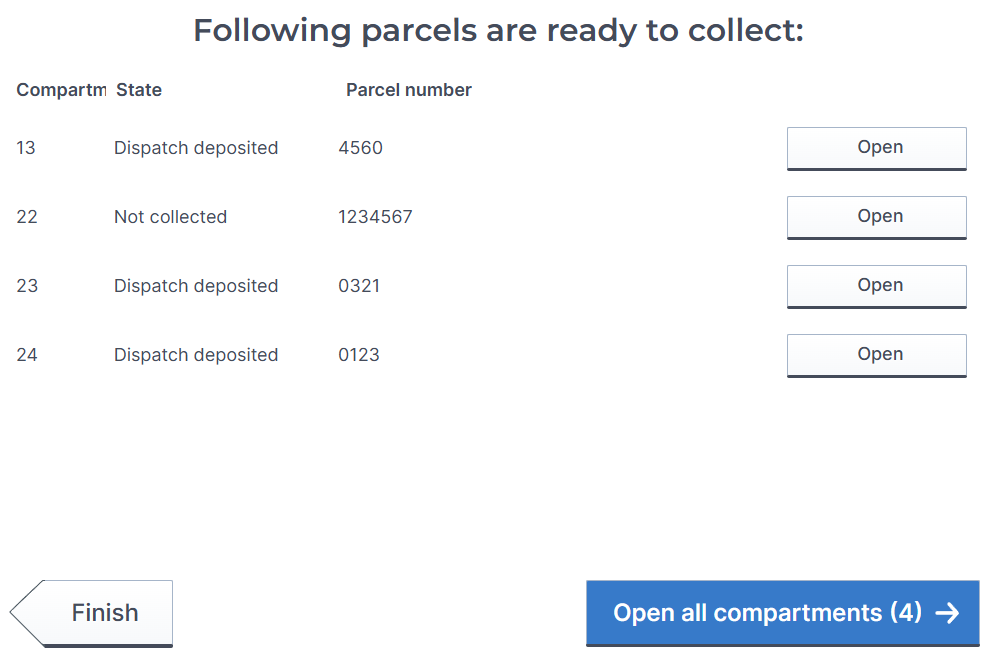
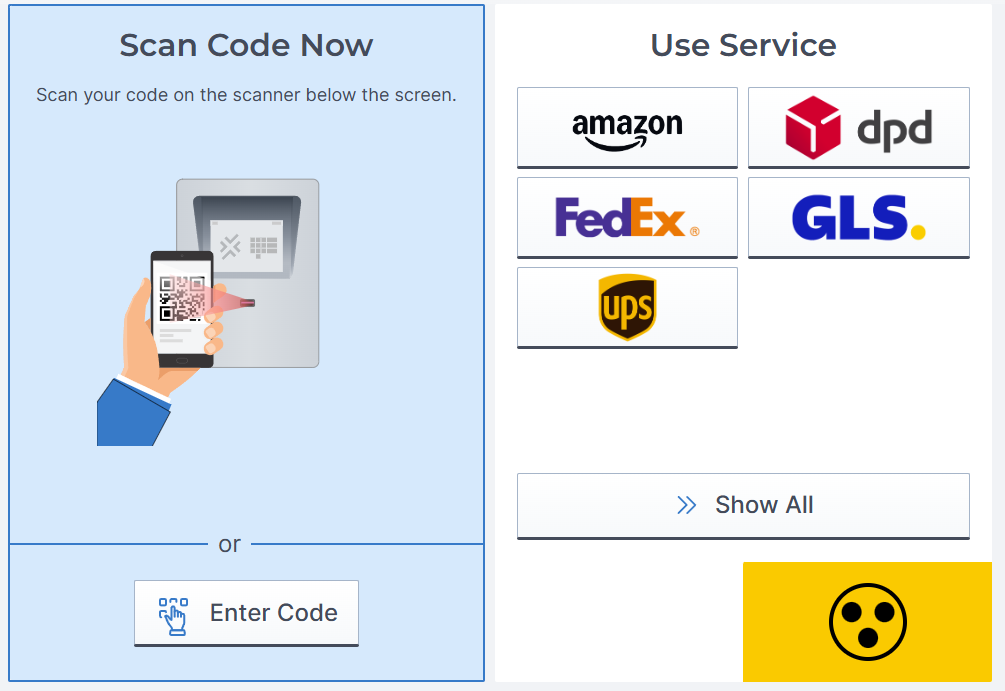
Pickup

  • 1

    Sign in to Locker (follow your specific process).

  • 2

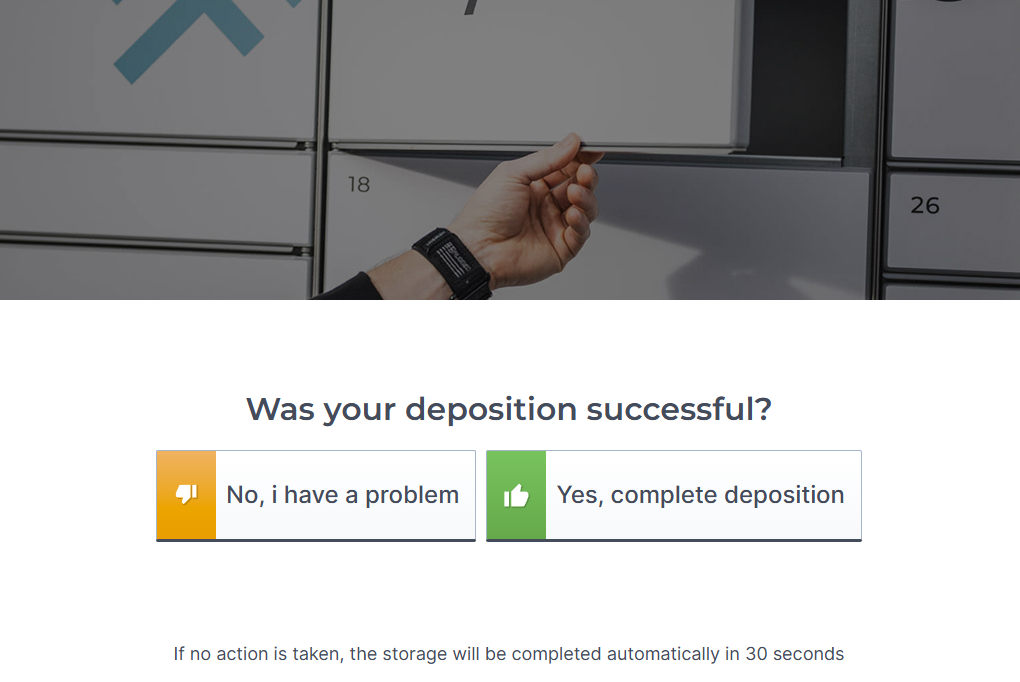
    In the pickup view, select the “Open All Lockers” option so you don’t forget any parcels. The lockers open automatically one after another: as soon as you close one, the next one opens. This process continues until all parcels to be picked up have been retrieved. You’ll see on the locker screen when the process is complete.

  • 3

    If you find an empty compartment, please report it by clicking the “Problem” button and then the “Compartment Empty” button. Also, scan the missing package with your handheld scanner and report it to your depot. For further assistance with problems, visit our FAQ page.

  • 4

    Once you’ve successfully picked up all your packages, select “Finish” at the locker.

collect parcel

General Storage Process

⚠️ Important Notes:

• Only one parcel may be stored per compartment, even if you have multiple parcels for the same person.
• Never place multiple parcels in a single locker, as this can lead to incorrect tracking, pickup issues , and technical malfunctions.
• Make sure each parcel is assigned individually and tracked correctly.

✅ Additional tips:

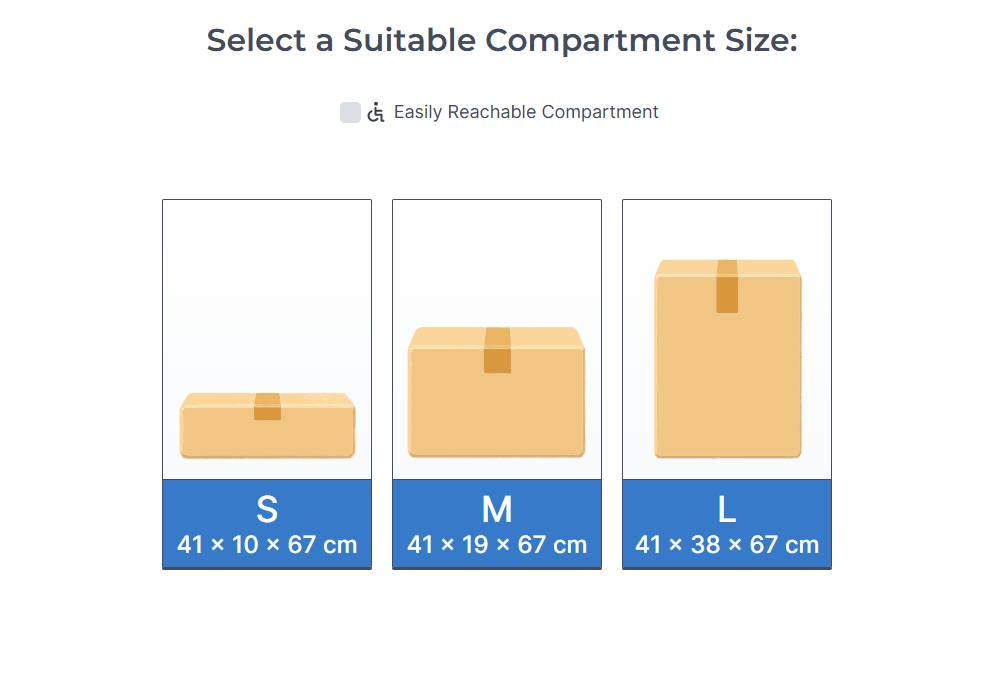
• Choose the right locker size so the locker isn’t overfilled and the parcel isn’t damaged.
• Carefully close and check all lockers after you’re done.

General Instructions

Storage

  • 1

    Open the compartment on the handheld scanner and scan the parcel.

  • 2

    Scan the parcel at the locker. Alternatively, you can enter the tracking number manually.

  • 3

    A compartment will open automatically, or you’ll need to select a compartment size.

  • 4

    Place the parcel in the compartment and close the door.

  • 5

    If the compartment is too small, change it (see the “Changing the compartment” section).

  • 6

    Once the package has been inserted and the door closed, the next parcel can be scanned immediately. There is no need to close the process.

  • 7

    Repeat the process until all parcels have been put into storage.

kep-neutral2-aspect-ratio-354-397

General Instructions

Change of Compartment

  • 7

    1

    Scan the parcel.

  • 8

    2

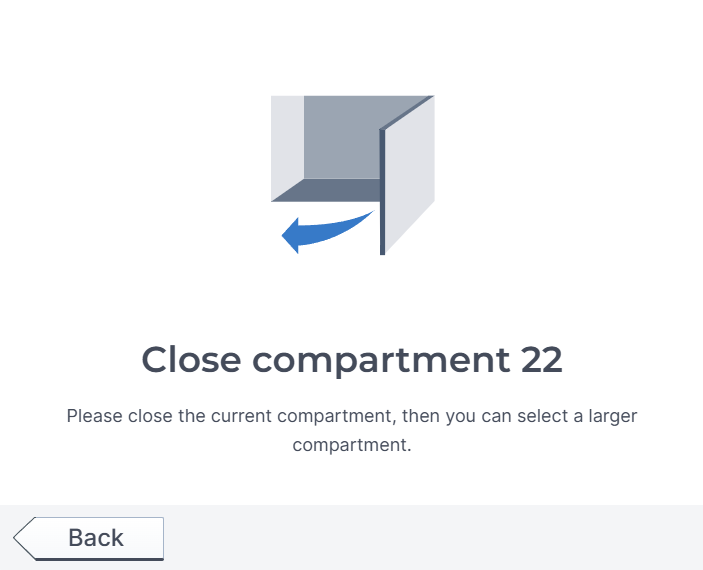
    If a compartment that’s too small opens , click “There’s a problem.”

  • 9

    3

    Select “Change Compartment Size.”

  • 10

    4

    Close the compartment that’s too small.

  • 11

    5

    Scan the parcel again.

  • 12

    6

    Manually select the required compartment size.

  • 13

    7

    The new compartment opens automatically; place the package in the compartment and close the door.

  • 14

    8

    Confirm the storage.

kep-neutral-aspect-ratio-354-397

Get immediate help through our service portal

Self Service

You can resolve about 90% of your daily issues directly on your own through our service portal. This saves valuable time, since inquiries and responses from the myflexbox team can naturally take a little longer.

You can sign up for the service portal at kep-support@myflexbox.com.
Important: To create a new user account, we need your first and last name as well as your email address.

Note:
Only users from your internal teams can be created.
External partners, such as contractual partners or subcontractors, do not have access to the service portal.

Common Challenges:

  1. Didn’t receive a pickup code
    Depending on your permissions in the service portal, you can view pickup codes for yourself or your customers directly and share them as needed.

  2. Shipment status in the locker
    You can check the current status of your shipments and view any misplaced items in the service portal at any time.

monitor

Video Pickup

Video Check: Compartment Size

Discover a nearby myflexbox location